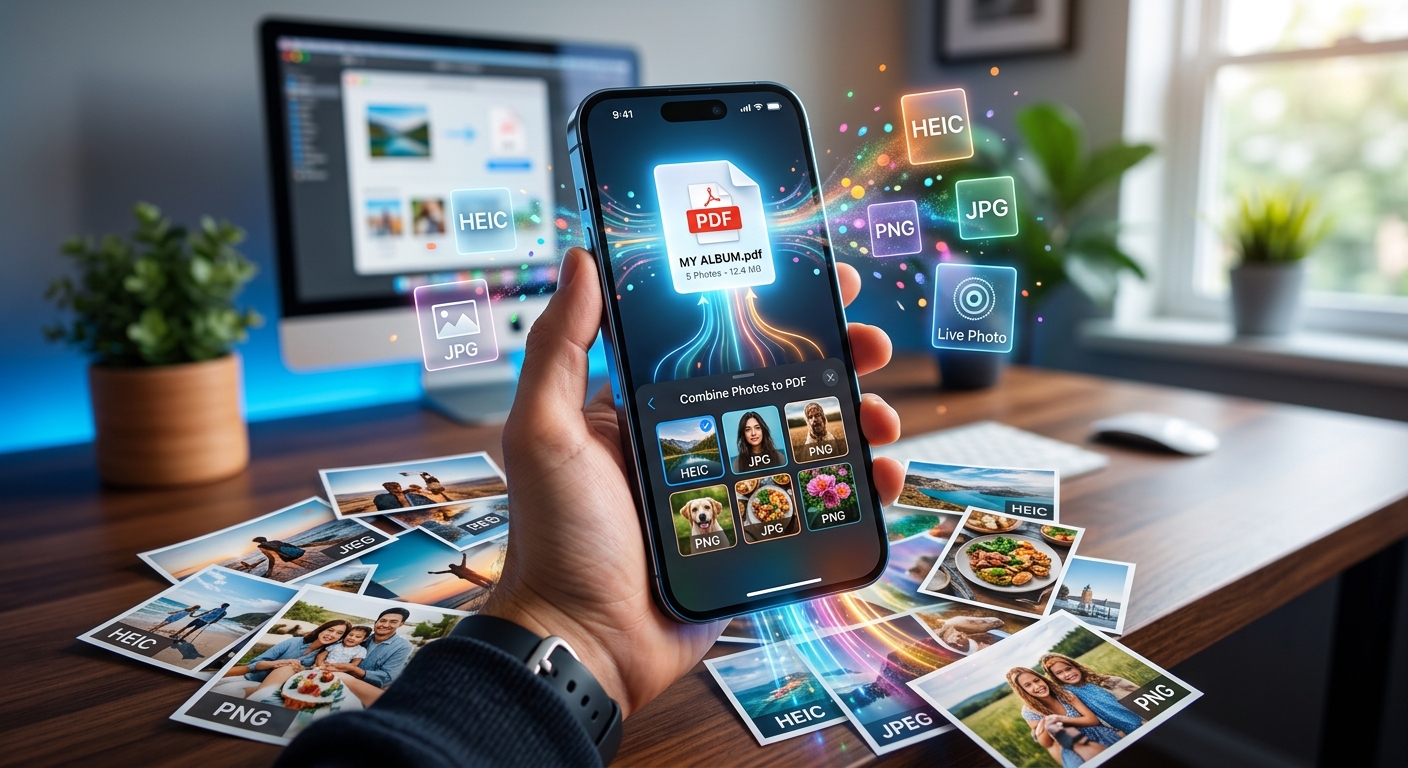
You gather a set of photos on your iPhone, move them to your computer, and drop them into a PDF tool. Blank pages stare back at you. Or the importer throws a vague error with no explanation. You try a different application. Same result. The photos are sitting right there on your drive, but nothing will read them correctly. The culprit is almost certainly a format you never consciously chose.
What You Need to Know First
- iPhone cameras save photos in HEIC by default, a format that most PDF builders, office suites, and email clients silently reject or display as blank thumbnails.
- Converting those photos to JPG before attempting any PDF merge removes the compatibility failure at its source, in under a minute.
- Choosing the right merge tool and DPI setting after conversion determines whether your final PDF works cleanly for print, email, or screen viewing.
HEIC Is the Hidden Reason Your PDF Builder Keeps Failing
Since iOS 11, the iPhone camera has saved every photo in HEIC by default. HEIC stands for High Efficiency Image Container. Apple adopted it because it compresses photos to roughly half the file size of a JPG at comparable visual quality. For storage on the device, that trade-off is excellent. For sending files to other people or to other software, it creates a persistent mess.
The issue is that HEIC is not a universal standard the way JPG is. JPG has been around since 1992 and is readable by virtually every application that handles images. HEIC, built on the HEIF image format, is a newer container that many Windows applications, older PDF utilities, and browser-based file converters simply cannot parse. Some tools will pretend to accept the file and then display a blank thumbnail in your document. Others produce a clean-looking import that quietly generates a corrupted page. A few just crash the job entirely with no useful error message.
None of these failure modes tell you that the file format is the problem. That is what makes HEIC such a frustrating obstacle. Users spend time troubleshooting their PDF tool, checking their export settings, reinstalling software, when the actual fix takes about thirty seconds and happens before the PDF tool is even opened.
The Mandatory First Step: Convert Before You Merge
Before you touch any PDF application, get those HEIC files into a format that every tool understands. JPG is the right target. PNG works too, but JPG produces smaller files, and for photographs rather than screenshots or diagrams, JPG quality is more than adequate for a PDF that will be printed, emailed, or archived.
On a Mac, you can batch-convert HEIC files through Preview by selecting them all, choosing Export Selected Images, and picking JPG from the format list. On Windows, the Photos app can open individual HEIC files if the HEIF Image Extensions package is installed from the Microsoft Store, but batch export to JPG is clunky and slow. The cleaner path for either platform is a dedicated browser-based tool. Converting iPhone photos to JPG through a web converter lets you drop in multiple files at once, process them all in a single batch, and download a ZIP of ready-to-use JPGs in under a minute. No software to install, no format confusion, no blank thumbnails on the other side.
Once you have JPGs, your PDF tool will import them without complaint. The process stops feeling like a fight and starts working the way you expected it to from the beginning.
Choosing the Right Merge Tool for Your File Count and Destination
With JPGs in hand, the assembly step is straightforward. The right tool depends on how many photos you are working with and where the final PDF is headed.
For a small set of images, say three to ten photos you need to send by email or attach to a report, any free online PDF merge tool handles the job in seconds. You upload your JPGs, arrange the page order, and download the PDF. Most of these tools include basic DPI options and standard page sizes. They work well for one-off jobs where you need a clean result fast and do not require precise control over the output.
For larger batches, think twenty or fifty photos from a site inspection, a product shoot, or a document archive, a desktop application gives you far more control. Adobe Acrobat is the industry standard and handles large image collections cleanly, though it requires a subscription. LibreOffice Draw is a capable free alternative that lets you insert images into individual pages and export the whole document as a PDF. On Mac, the built-in Preview application can merge a collection of image files into a single PDF by dragging thumbnails into the correct sequence in the sidebar and then using File, Export as PDF. It is not the most powerful option available, but for straightforward photo-to-PDF jobs it works reliably without any additional software.
File size is worth thinking about before you commit to a tool. A PDF built from twenty full-resolution JPGs can easily exceed 50 MB. That causes problems with email attachment limits, upload caps on client portals, and slow loading in document management systems. Most desktop tools let you set JPG quality before merging or compress the PDF after creation. Setting compression to around 80 percent quality before merging reduces file size significantly, and the visual difference for standard viewing is minimal.
Setting DPI for Print Versus Screen Use
DPI, dots per inch, is the single setting that most affects whether your PDF looks sharp when printed or unnecessarily large when viewed on a screen. Getting this right before you export saves you from rebuilding the document later.
For screen-only use, 72 to 96 DPI is sufficient. A PDF at this resolution loads quickly, emails cleanly, and looks correct on any monitor or tablet. Pushing the resolution higher for documents that will never be printed adds file size without any visible benefit to the reader.
For printing, 300 DPI is the standard professional threshold. Below that, photos begin to look soft or pixelated when printed at full size, particularly on anything larger than a standard letter or A4 sheet. If your PDF is going to a print shop, an architect, or a client who will print it on their end, 300 DPI is the floor.
A common point of confusion is that iPhone photos often embed 72 DPI in their metadata, which sounds low. But the actual pixel dimensions captured by a modern iPhone camera are large enough to print at 300 DPI at standard document sizes. A 12-megapixel photo is 4032 by 3024 pixels. At 300 DPI, that prints cleanly at around 13 by 10 inches. The DPI tag embedded in the file metadata is misleading. What actually determines print sharpness is the total pixel count relative to the physical dimensions you are targeting. When your merge tool asks for a DPI setting, choose 300 for anything headed to a printer, 96 for digital distribution only, and 150 if you need a reasonable middle ground that keeps files manageable while still printing acceptably at standard page sizes.
Orientation, Page Order, and Final Checks Before Export
A few details catch people off guard in the final step, and they are easy to miss if you are moving fast.
Page order matters more than it seems. A PDF where photos appear in the wrong sequence forces the reader to work backwards to make sense of it. Most merge tools and desktop applications let you drag pages into position before exporting. Take thirty seconds to verify the sequence matches what you intend before committing to the final file.
Orientation deserves a check as well. iPhone photos taken in landscape mode will appear as landscape pages in the PDF unless you rotate them. A document that alternates between portrait and landscape is disorienting to read and looks unprofessional. Rotate all images to a consistent orientation before or during the merge step. Most tools make this a single click per page.
Check for compression artifacts if you reduced JPG quality aggressively before merging. Open a few pages in the preview and look at any photo that contains text, signage, or fine detail. If text looks blurry or you see color banding in flat areas, the JPG quality was set too low. Re-export those source files at a higher quality setting before rebuilding the PDF.
Name the output file something descriptive before saving. A file called "document(3).pdf" tells no one, including yourself, anything about what is inside. A name like "site-inspection-2026-09-29.pdf" is searchable, sortable in any file browser, and self-explanatory when someone opens their downloads folder six months later.
From Camera Roll to a PDF That Travels Without Problems
The path from iPhone photos to a clean, compatible PDF has one checkpoint that determines whether the rest of the workflow runs smoothly or falls apart: the format conversion. HEIC is a genuinely capable image format for on-device storage. Outside the Apple ecosystem, it is a compatibility liability. Skipping the JPG conversion means fighting blank thumbnails, import errors, and corrupted pages across every tool you try. Taking that step first removes the obstacle entirely.
Convert HEIC to JPG. Pick a merge tool that fits your file count and output destination. Set DPI based on whether the document is going to a printer or a screen. Check page order and orientations before exporting. Name the file clearly. Those five steps cover the vast majority of what goes wrong when people try to build PDFs from iPhone photos, and none of them require any specialist knowledge. The process is genuinely straightforward once you know where the real problem lives.